
Set up staff applications
Make a form (the questions), post a panel (the Apply button), then accept or deny what people send.
1. Make the form
-
Open Forms
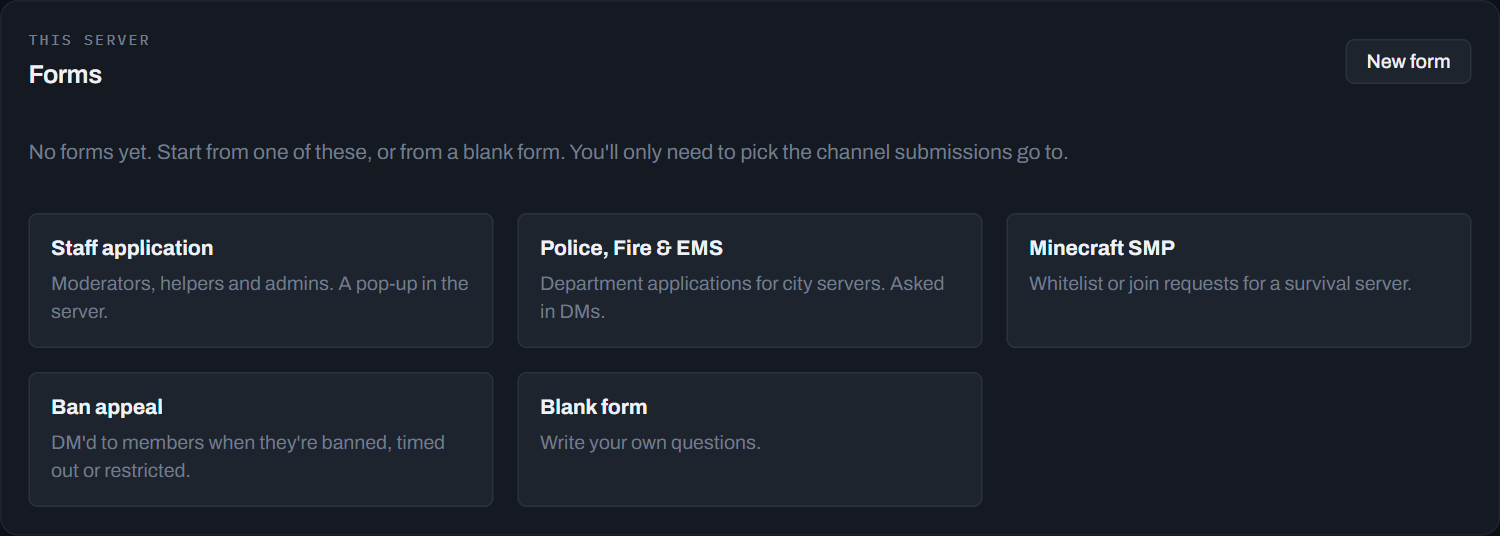
In the dashboard, click Forms (under Applications). If you have none yet, the templates show right away; otherwise press New form.
-
Pick a template
Staff application, Police, Fire & EMS or Minecraft SMP fill in the questions for you. Or pick Blank form and write your own.
-
Pick the Log channel
Log channel is where applications arrive for your staff to review. Use a staff-only channel. This is the one thing a template can’t fill in.
-
Check the questions
Change any question you like, or press Add question. In server forms open as a Discord pop-up, which fits 5 questions; Direct message forms ask up to 10, one at a time, in DMs.
-
Optional: roles
Under Roles, Granted on accept gives a role to people you accept, like @Trial Mod. Pinged when one arrives pings your staff.
-
Press Create form
2. Post the Apply button
-
Open Panels
Click Panels (under Applications), then New panel.
-
Fill it in
Channel: where the button goes, like #apply. Title: like Apply to the team.
-
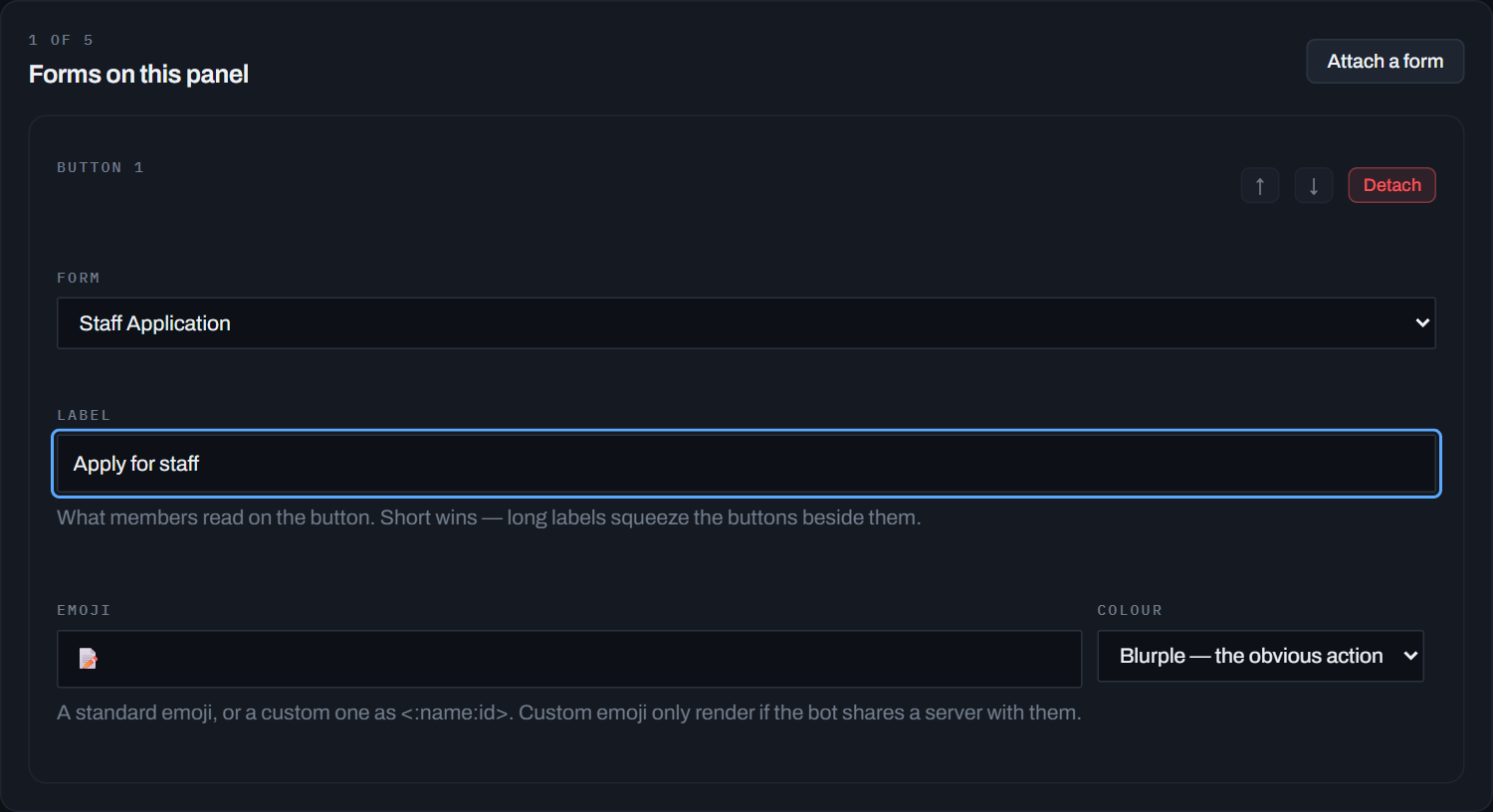
Attach your form
Press Attach a form and pick it. One panel can hold up to 5 forms, each with its own button.
-
Create and post
Press Create panel, then Post in the list, then Post it. The Apply button appears in your channel.
3. Review applications
Each application shows up in the form’s Log channel with buttons under it:
- Accept: gives any roles you set and tells the applicant.
- Deny: asks for a reason (optional) and tells the applicant.
- Ask applicant: sends them a question first.
- 👍 / 👎: let staff vote before someone decides.
Accepting and denying happen in Discord. The dashboard’s Applications page lists everything people sent so you can look back through it.
/panel create in a channel posts a panel for a form
straight away.
Stuck on a step? Ask in the support server, or see all guides.