
Getting started
Add the bot, open the dashboard, pick your server. About two minutes.
-
Add Appealy to your server
Click Add to Discord, pick your server and press Authorize. You need Manage Server on that server, or it won’t be in the list.
Leave every permission ticked. Each one is used by a feature, and a missing one makes that feature quietly do nothing.
-
Open the dashboard
Go to appealy.app/dashboard. It sends you to Discord to sign in the first time: press Authorize there and you come straight back.
-
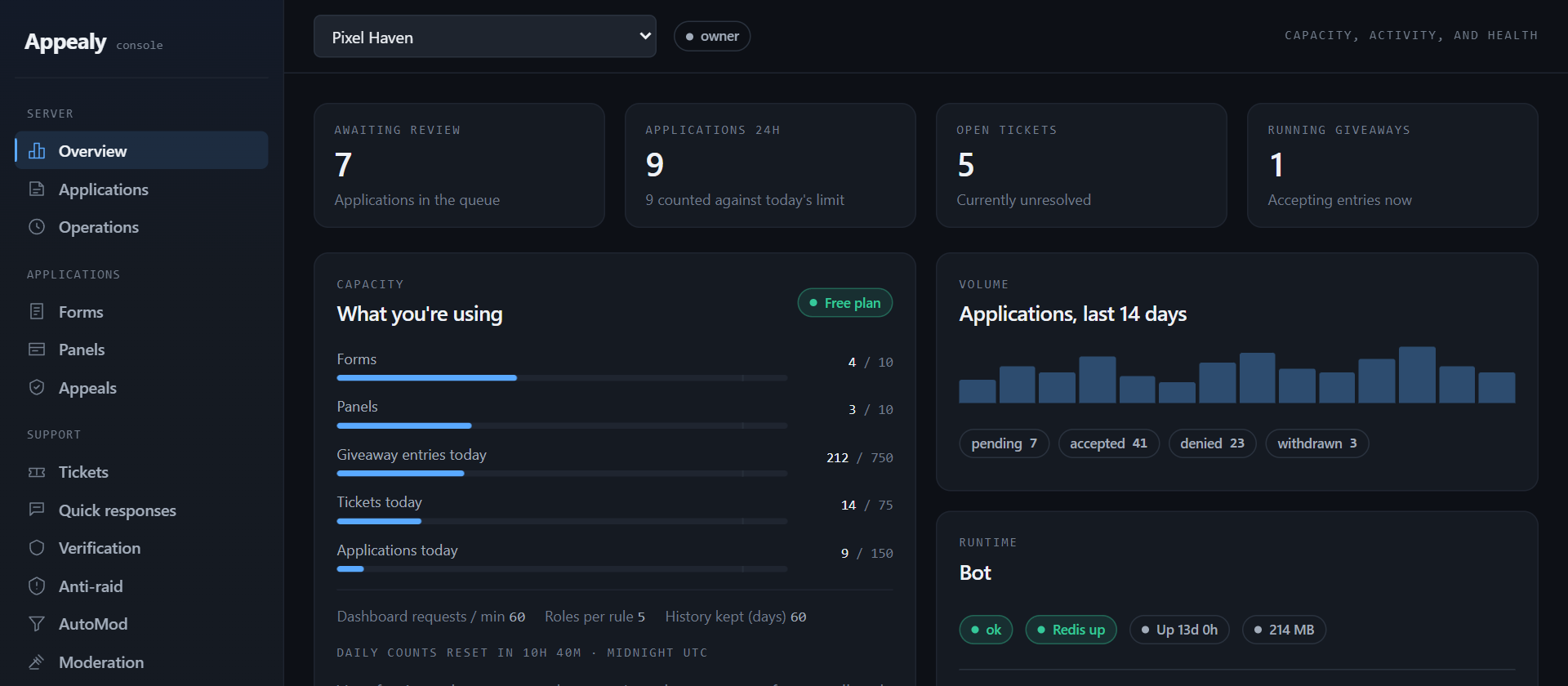
Pick your server
Use the server menu at the top. Servers marked UNINVITED don’t have the bot yet: pick one and press Invite Appealy.
You only see servers where you’re the owner, an Administrator, or have Manage Server.
-
Pick a channel for Appealy’s updates
The first time, the dashboard asks you to Pick a channel for Appealy’s updates. Choose a staff or announcements channel and press Send updates here. Appealy posts a short note there when something important changes, nothing else.
If it says it can’t, give Appealy the Manage Webhooks permission in that channel and try again.
What’s in the sidebar
| Group | Pages |
|---|---|
| Server | Overview, Applications (the list of everything people sent), Operations |
| Applications | Forms, Panels, Appeals |
| Support | Tickets, Quick responses, Verification, Anti-raid, AutoMod, Moderation |
| Engagement | Welcomer, Role menus, Sticky messages, Giveaways, Polls |
| Administration | Staff access, Billing, Help & support |
What next
Stuck on a step? Ask in the support server, or see all guides.